 _________
/_  __/ _ \  __ ______ ____  ___  ___ ____
 / / / ___/\ \/ __/ _ `/ _ \/ _ \/ -_) __/
/_/ /_/  /___/\__/\_,_/_//_/_//_/\__/_/




TPscanner is a Python script that extracts prices of items from Trovaprezzi.it, sorts them, displays and saves the results in a spreadsheet. It also finds the best cumulative and individual deals.
If your don't want to use the command line, check the TPscanner browser extension. It works on Chromium-based browsers (e.g., Chrome, Edge), Firefox, and Safari.
Setup
Before you can run TPScanner, you need to set up your environment. This project uses Poetry for dependency management. If you haven't installed Poetry yet, you can do so by following the instructions on their official website.
Once you have Poetry installed, follow these steps to set up the project:
- Clone the repository:
-
Activate the virtual environment.
-
Install the project dependencies:
External dependencies
The script relies on Selenium web driver. Make sure that the Chrome/Chromium web browser is installed before running the script.
Note
If you don't have poetry installed (or don't want to install it), you can use pip as follows:
- First, create a virual environment:
python -m venv .tps. - Activate it:
source .tps/bin/activate. - Install requirements:
pip install -r requirements.txt. - Optional, for development purposes only, run also:
pip install -r requirements-dev.txt.
Usage
To run the script, use the following command:
python -m tpscanner -u url1 url2 ... | -f path/to/input/file.txt [-q n1 n2 ...] [--includena] [-w n] [--headless] [--console] [--excel]
options:
  -h, --help              Show this help message and exit
  -u URL [URL ...], --url URL [URL ...]
                          List of URLs to scan
  -f FILE, --file FILE    File containing URLs to scan
  -q QUANTITY [QUANTITY ...], --quantity  QUANTITY [QUANTITY ...]
                          List of quantities to buy for each URL (in order)
  -i , --includena        Whether to include items marked as not available
  -w WAIT, --wait WAIT    Wait time between URLs requests (default 5 sec.)
  --headless              Run in headless mode
  -c, --console           Whether to print results to the console
  -x, --excel             Whether to save results to Excel
  -l=LEVEL, --level=LEVEL Set the desired logging level
                          (none, debug, info, warning, error, critical)
Alternatively, you can run the script as:
or
Warning
The script can run with the browser in headless mode. In my tests, however, I've noticed that it often causes the server to display captchas, thus making the script scraping process fail.
Output
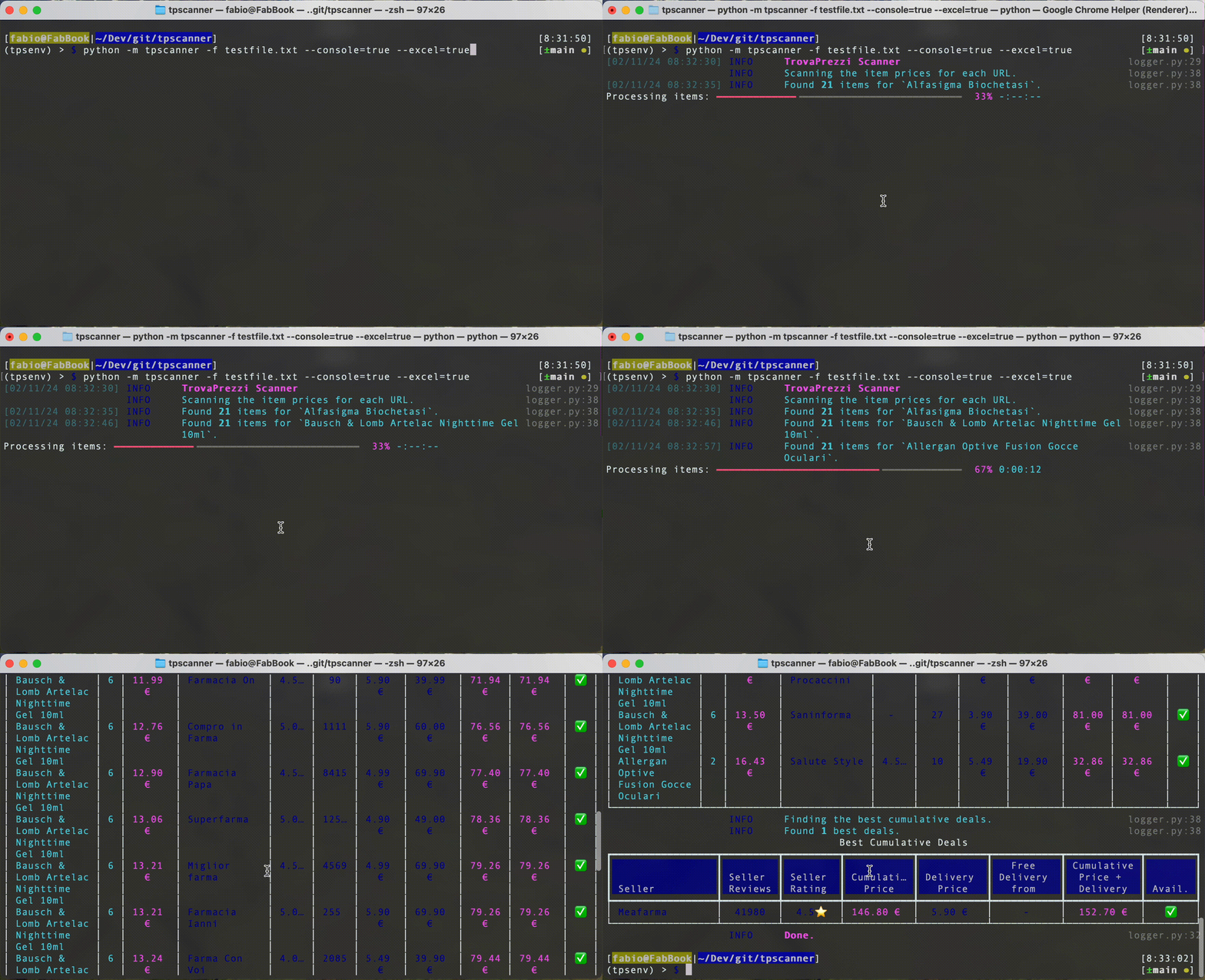
When the --console option is enabled, the script outputs to the console
the results in the form of tables.
When the --excel option is enabled, the script creates a spreadsheet named results_<current_datetime>.xlsx with the sorted list of items and the best cumulative deals.
Configuration
You can configure the script by editing the file config/config.json. At the moment, you can configure:
sleep_rate_limit = 2: Too aggressive scraping will cause the server to show captchas. By default, the script will wait 2 secs. in between each item's offer scraping.chrome_version: 120: The Chrome version to use with the undetected_chromdriver module.user_agents = []: A list of browser User-Agent strings to cycle through in headless mode.output_dir = results: The output directory where to store the Excel output file. It is set to theresults/subfolder in the current working directory by default.
License
This project is licensed under the MIT License - see the LICENSE file for details.